Chapter 2 Publish Your First Archive
Time required: 2-3 minutes
2.1 Step 1: Start from Zenodo
2.1.1 Prepare Your Repository
Make sure your code is ready:
- ✅ All important files are committed and pushed
- ✅ README.md explains what the code does
- ✅ Any necessary documentation is included
2.1.2 Navigate to Your Repository in Zenodo
- Go to zenodo.org
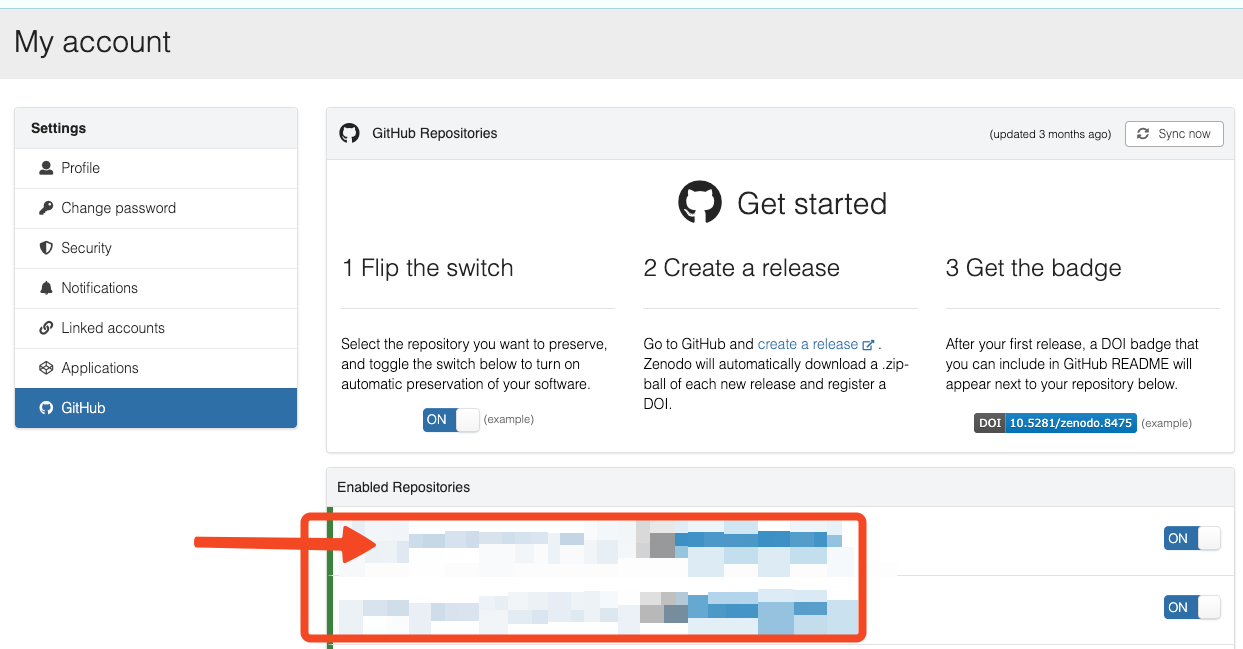
- Click “GitHub” in the top menu
- Under “Enabled Repositories”, find your repository and click on it
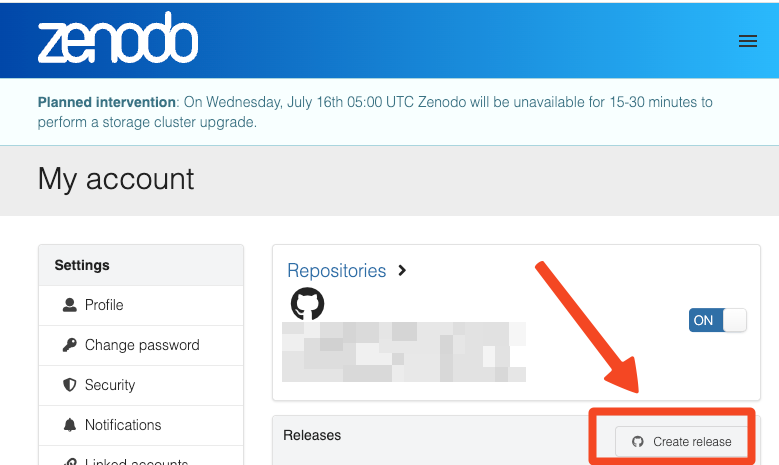
- On the right side of next page, click “Create release” button
2.2 Step 2: Create the GitHub Release
You should now be on GitHub’s “Draft a new release” page.
2.2.1 Fill in Release Details
Tag version: Use semantic versioning (e.g., v1.0.0):
v1.0.0for first major releasev1.1.0for feature updates
v1.0.1for bug fixes
Release title: Descriptive name (e.g., “Initial analysis code release”)
Description (fully optional): Brief summary of what’s in this version
## Analysis code for [Your Project Name]

This release contains the complete analysis code for reproducing
the results in [paper/project name].

### Contents
- Data processing scripts
- Statistical analysis code
- Visualization functions
- Documentation and examples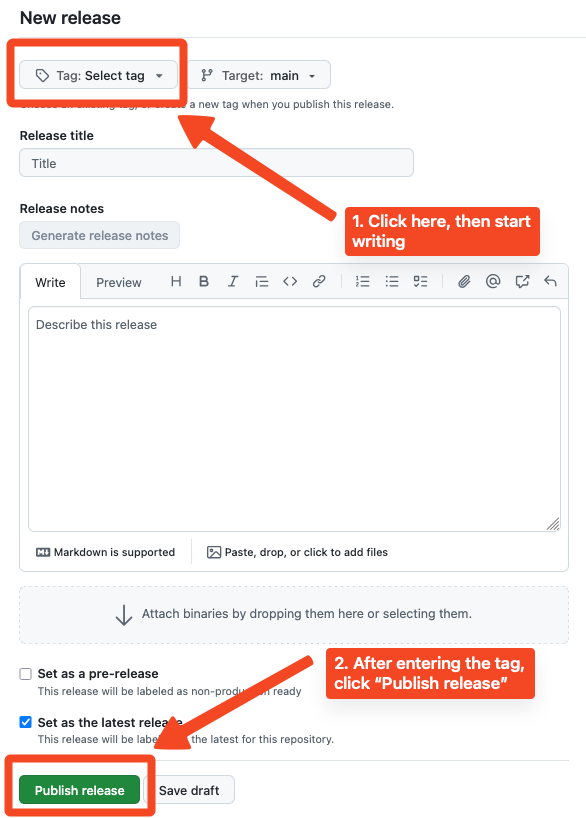
2.3 Step 3: Get Your DOI from Zenodo
2.3.1 Go Back to Zenodo
Now that you’ve created the GitHub release:
- Go back to zenodo.org
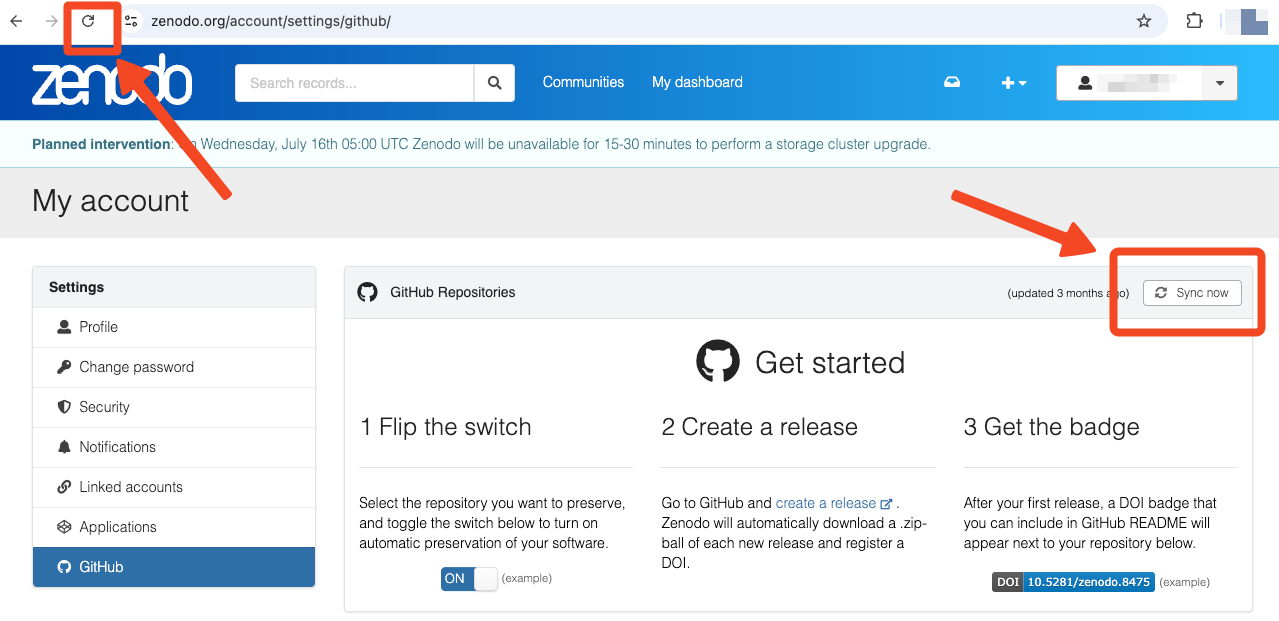
- Navigate to “GitHub” → “Enabled Repositories”
- Reload the page - your repository should now show the new release!
- If needed, you can also click the “Sync now” button
2.4 Step 4: Use Your Citation
2.4.1 DOI Badge for GitHub
Zenodo provides a DOI badge for your README:
[](https://doi.org/10.5281/zenodo.1234567)Add this to your repository’s README.md file.
2.5 Future Releases = Automatic Updates
The best part: Every future GitHub release automatically creates a new Zenodo version!
- Create new GitHub release → Zenodo automatically archives it
- Each gets its own version DOI
- Plus one “concept DOI” that always points to the latest version
2.6 Troubleshooting
Release not appearing in Zenodo?
- Wait 5-10 minutes (can take time to sync)
- Check if repository is still “enabled” in Zenodo
- Verify the release is public on GitHub
Want to remove your submission from Zenodo?
- Contact support@zenodo.org and request removal
- Important: You have only a 30-day grace period after publication for deletion
- Include your DOI and reason for removal in the email
- After 30 days, deletion requests will be declined
Discovered a mistake after the 30-day grace period?
- Create a new version of your record with the corrections
- Set the old record’s visibility to “restricted”
- Use the “Notes” field to explain the errors and recommend using the newer version
- This way you can fix mistakes even when deletion is no longer possible
🎉 Congratulations!
Your code now has a permanent DOI and is properly archived for long-term access. You can cite it in papers, share it with confidence, and ensure it’s preserved beyond GitHub’s lifespan.
Your 5-minute investment just made your research more professional and citable!